
How to Make Your Windows 11 PC Faster Safely
C-Educate Assist Windows 11 Performance helps diagnose slow startups, high RAM usage, 100% disk usage, high CPU usage, and gaming performance problems with practical, step-by-step troubleshooting guides.
Learn what is slowing down your computer, which fixes are worth trying, and how to improve performance without unnecessary upgrades or risky system changes.
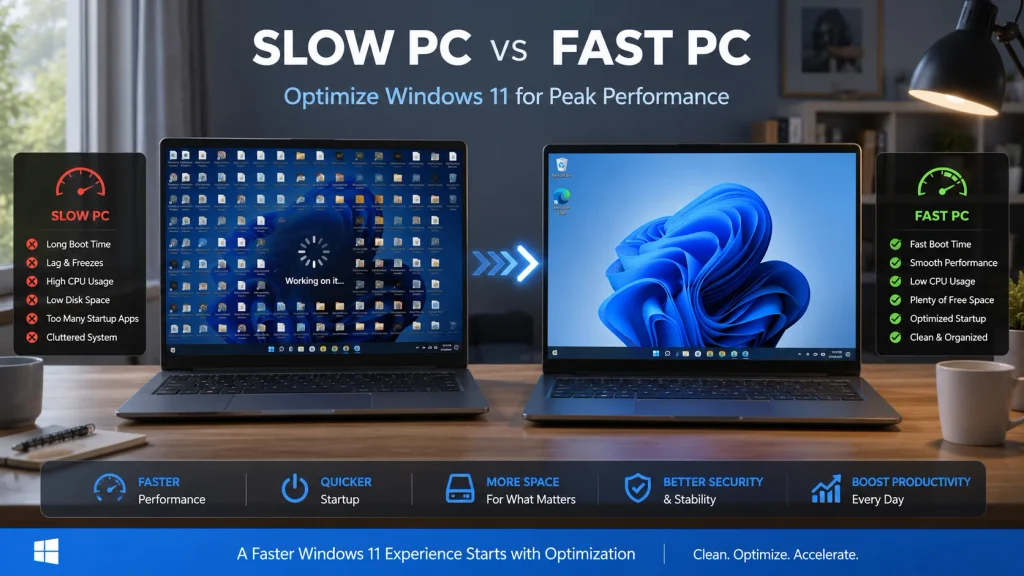
What’s Slowing Down Your PC?
🚀 Slow Windows Startup
Find out why your PC takes too long to boot and how to reduce unnecessary startup delays.
🧠 High RAM Usage
Learn why Windows is using so much memory, how to identify resource-hungry apps, and when a RAM upgrade might help.
[Fix High RAM Usage in Windows→]
💿 100% Disk Usage
Diagnose a disk that stays at 100% usage, investigate background activity, and identify potential storage or drive problems.
[Fix 100% Disk Usage in Windows →]
🔥 High CPU Usage
Discover which processes are using your processor and how to investigate persistent high CPU usage.
[Fix High CPU Usage in Windows→]
💻 Slow or Low-End Laptop
Improve everyday responsiveness on older laptops and lower-spec PCs with practical, hardware-conscious adjustments.
[Speed Up a Low-End Windows Laptop →]
🎮 Gaming Lag and Low FPS
Troubleshoot stuttering, frame-rate drops, background processes, and graphics settings that affect gaming performance.
[Fix Gaming Lag and Improve FPS→]
Not Sure What’s Causing the Problem?
A slow computer can have several causes. Before changing Windows settings or installing optimization tools, work through a structured diagnostic process to narrow down the issue.
Want to Make Your PC Faster Overall?
Follow the complete Windows performance guide for a structured approach to diagnosing and improving a slow computer. Learn what to check first, which changes are worth making, and how to avoid fixes that add complexity without solving the underlying problem.
[Read the Complete Windows Speed Guide→]
Get Help With a Specific Performance Problem
Go beyond general optimization with guides focused on the Windows performance issues users encounter most often.
RAM Guide
Understand memory usage, identify apps consuming excessive RAM, and decide whether software changes or additional memory could help.
Link: How to Fix High RAM Usage
Disk Guide
Investigate persistent disk activity, slow storage, and common causes of 100% disk usage.
Link: How to Fix 100% Disk Usage
Startup Guide
Review startup apps, background services, and other factors that can delay Windows boot times.
Link: How to Speed Up Windows Startup
Gaming Guide
Troubleshoot low FPS, stuttering, background resource usage, and Windows settings that may affect game performance.
Link: How to Improve Windows Gaming Performance
Practical Advice, Clear Testing, Honest Limitations
PC optimization advice should explain not only what to change, but why the change might help and when it might not.
C-Educate focuses on actionable troubleshooting, transparent explanations, and fixes matched to the problem rather than one-size-fits-all optimization.
Our approach:
- Diagnose before changing: Check resource usage and symptoms before recommending a fix.
- Explain the reasoning: Describe what each setting or adjustment does and why it may help.
- Prioritize sensible fixes: Start with targeted, low-risk steps before advanced changes or hardware purchases.
- Explain the limitations: Results vary with hardware, Windows versions, installed software, and the underlying cause.
- Avoid unsupported promises: No guaranteed FPS increases, universal performance percentages, or claims that every tweak works on every PC.
Testing claims should reflect the actual tests performed. Where a change has not been independently benchmarked, identify it as a troubleshooting recommendation rather than a proven performance improvement.
CTA: Learn About Our Testing Approach
Want to Apply Selected Tweaks More Easily?
The C-Educate optimization script is an optional tool for users who understand the changes they want to make and prefer a guided way to apply them.
Before purchasing, review the complete list of actions, prerequisites, limitations, and recovery instructions.
What it does:
- Lists the exact Windows settings and configuration changes it applies.
- Explains the purpose of each included adjustment.
- Identifies which changes are optional and which require administrator access.
- Provides instructions for reviewing results and undoing supported changes.
Who it is for: Users who are comfortable reviewing system settings and following technical instructions.
Who should skip it: Anyone who is unsure what the script changes, needs a guaranteed performance improvement, or cannot safely recover from a configuration problem.
How to undo changes: Explain the specific rollback method for each supported change, including any required backup, restore point, exported setting, or manual reversal. State clearly when a change cannot be automatically reversed.
CTA: Review the Script and Its Changes
Why is my Windows PC suddenly slow?
Common causes include background processes, insufficient available memory, storage bottlenecks, overheating, software problems, and updates. Start by checking Task Manager and identifying which resource is under pressure.
How can I tell whether RAM, CPU, or disk usage is causing the slowdown?
Open Task Manager and inspect the Performance and Processes tabs while the problem occurs. Look for sustained resource pressure and identify the processes responsible before changing settings.
Does 100% disk usage mean my hard drive is failing?
Not necessarily. Windows updates, background tasks, slow storage, and software issues can all cause high disk activity. However, unusual noises, read errors, disappearing files, or repeated storage warnings warrant a prompt backup and drive-health investigation.
Will these guides work on every Windows PC?
Not every fix applies to every system. Results depend on your Windows version, hardware, drivers, applications, and the underlying cause of the problem. Follow the instructions that match your setup.
Can I speed up an older or low-end laptop without upgrading it?
Often, you can improve responsiveness by reducing unnecessary startup activity, freeing storage space, addressing background processes, and adjusting suitable settings. Hardware limitations still matter, and some systems will benefit more from an upgrade than from software changes.
Are Windows optimization scripts safe?
That depends on the specific changes, how the script is executed, and whether you understand its effects. Review the script, check its source, back up important data, and understand the recovery process before running it with elevated permissions.
Do your guides guarantee higher FPS or faster startup times?
No. A fix can help when it addresses the actual bottleneck, but no single setting guarantees better results across all computers. Where benchmark data is available, consult the relevant guide for the tested configuration and results.
Where should I start if I don’t know what’s wrong?
Start with the PC Diagnostic Hub. It will help you narrow down the symptoms and choose the appropriate specialist guide before you make changes.
Final CTA: Ready to Find Out What’s Slowing Down Your PC?
Start with a diagnosis, follow the guide that matches your symptoms, and make informed changes one step at a time.
🎯Windows 11 Performance Help: Who Is This For?
C-Educate is ideal for:
✔ Slow Windows 11 laptops
✔ Budget student computers
✔ Remote work PCs
✔ Low-end gaming setups
✔ Older hardware running Windows 11
If your PC feels slow after a Windows update — we can help.