
How to Optimize Windows 11 for Gaming Fast
How to Optimize Windows 11 for Gaming Fast
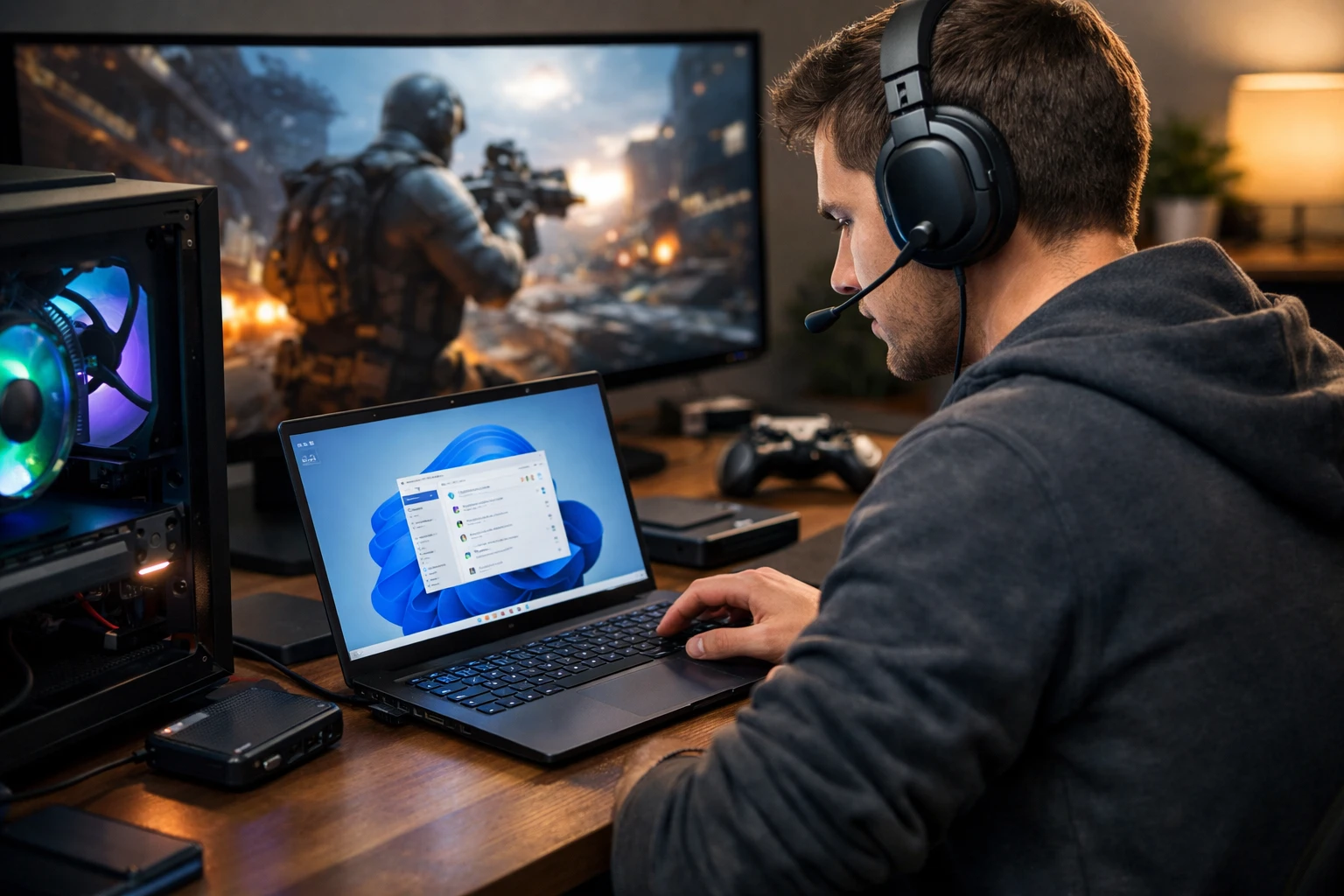
11:14 p.m. A student on a tired Lenovo IdeaPad clicks into a match, and the game stutters before the countdown ends. Discord wakes up. Steam checks for updates. A browser with 17 tabs chews through memory. The frame rate dips every time something in the background decides it matters too.
That is why so many people search for how to optimize windows 11 for gaming. You do not need sketchy “boost” apps or a weekend lost in the registry. You need a short checklist, done in order, with a before-and-after test after each change.
Why your PC feels slow before the match even starts
What gets in the way of smooth gameplay
Watch This Helpful Video
To help you better understand how to optimize windows 11 for gaming, we’ve included this informative video from Lecctron. It provides valuable insights and visual demonstrations that complement the written content.
Windows 11 is built to juggle schoolwork, web browsing, cloud sync, messaging, updates, recording tools, and a game at the same time. That balance is convenient on a normal Tuesday afternoon. It is less helpful when you want stable FPS in Fortnite, EA Sports FC, or Counter-Strike 2.
Windows 11 ships with defaults that suit office work and light browsing, not always gaming. On a low-end laptop or an older desktop, that mismatch shows up fast — longer launch times, uneven frame pacing, and ugly 1% lows even when the average FPS looks passable.
What this guide will change first
We will start with the easy wins: Game Mode, background apps, GPU scheduling, current graphics drivers, power settings, and startup clutter. Those are visible, reversible, and tied to real system behavior. They are not magic. They are also the tweaks most likely to move the needle.
For many systems, these changes can produce a noticeable improvement in responsiveness and frame-time consistency, but results vary by hardware. A Ryzen 5 desktop with an RTX 3060 will react differently than a school laptop running integrated graphics.
Why the safest fixes come before the risky ones
You can always go deeper. You usually should not start there. If a change lives in plain Windows Settings, Task Manager, or your GPU control app, it is easy to explain and easy to undo. That is where beginners should live.
Registry edits, mystery scripts, and one-click “optimizer” tools often bundle ten changes together and tell you none of them. If performance drops or something breaks, you are stuck guessing.
Focus on the changes that affect FPS and frame-time first; skip the hype.
Before you change anything: what you need for how to optimize windows 11 for gaming
Check your starting point
Before touching a setting, make a baseline. Otherwise every tweak feels impressive because you want it to be. Measuring first is boring. It also keeps you honest.
- Restart your PC.
- Wait two minutes so startup activity settles.
- Open one game you actually play.
- Use the same scene, map, or benchmark for every test.
- Write down average FPS, obvious stutter, and loading time.
If your game has a built-in benchmark, use it. If not, use a repeatable spot — for example, the Valorant practice range or the Apex Legends firing range. Testing the same moment matters more than testing the fanciest one.
Open the tools you will actually use
You do not need a lab. For most safe, beginner-friendly changes, Task Manager, Windows Settings, and your GPU’s control app are enough.
| Tool | What to check | Why it matters |
|---|---|---|
| Task Manager | CPU, Memory, Disk, Startup apps | Shows what is eating resources before and during launch |
| Windows Settings | Game Mode, Graphics, Power, Gaming features | Holds the safest system-wide changes |
| NVIDIA App or AMD Adrenalin | Driver version, power behavior, overlays | Keeps your GPU current and performance-focused |
| Windows Security | Memory Integrity | Lets you weigh security against gaming performance |
Make the changes reversible
Take screenshots before you flip any switch. Search Windows for “Create a restore point” and make one if you plan to test security or power changes. Keep a plain text note with the date, the setting you changed, and the result. Yes, even if it feels excessive.
When HAGS helps in one game but hurts another, or when Memory Integrity turns out to cost you almost nothing, your notes save time. They also stop you from repeating the same tweak three weeks later and thinking it is new.
If you cannot compare before and after, you are guessing.
Step 1: Turn on Game Mode and close the obvious background load
Enable Game Mode in Windows settings
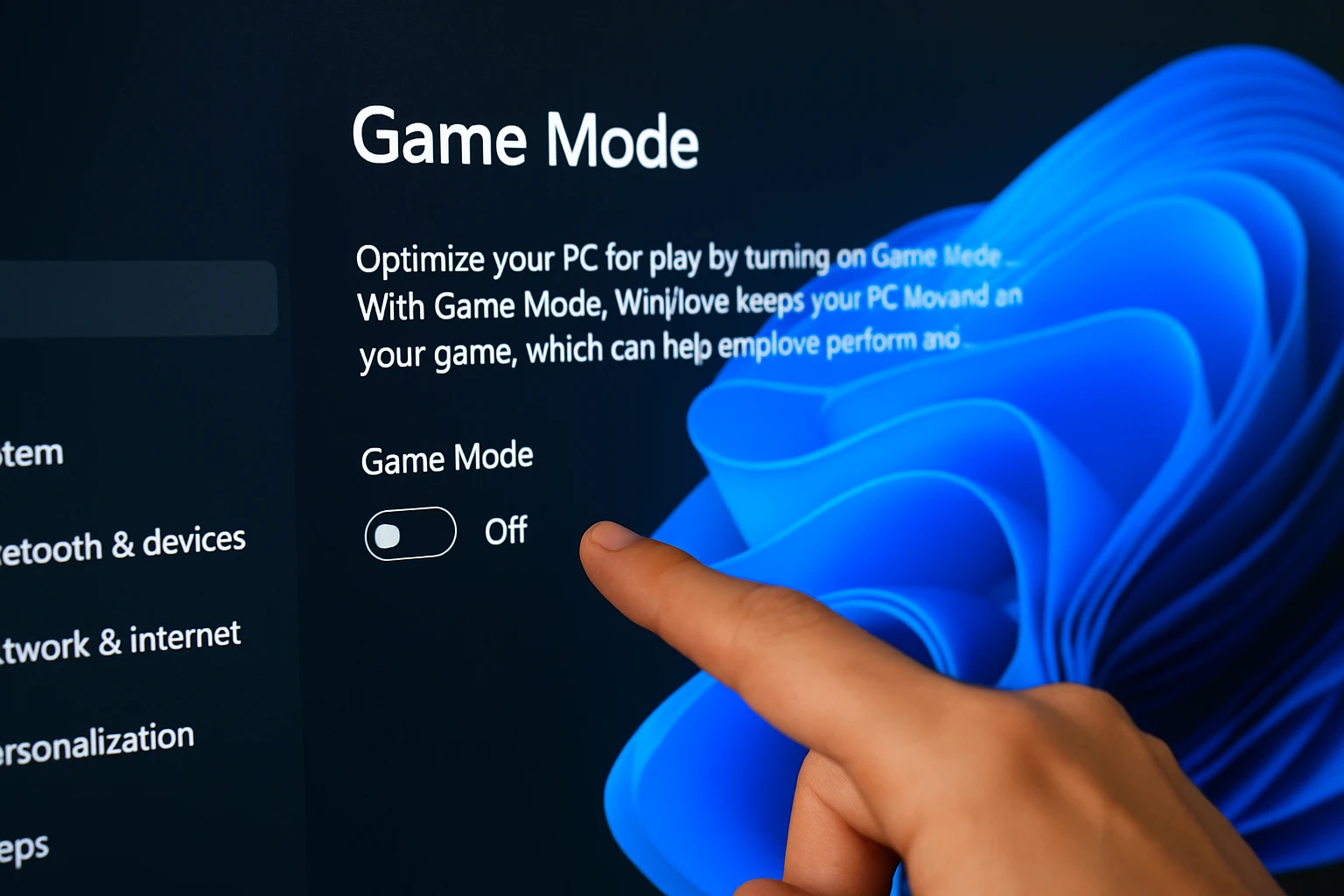
Open Settings, go to Gaming, then Game Mode, and turn it on. This is one of the first tweaks in a typical optimization order for a reason: it is simple, visible, and low risk.
Game Mode tells Windows to treat your game as the main event. It can reduce interference from background tasks and help the system behave less like a multitasking office machine. Do not expect miracles. Do expect fewer needless interruptions while you play.
Close launchers, chat apps, and browsers
Now kill the obvious resource hogs. Close Discord if you do not need voice chat. Exit Steam if the game is not using it. Shut Epic Games Launcher, Battle.net, Spotify, RGB software, browser tabs, and anything syncing in the tray.
Use Task Manager and sort by CPU or Memory. On a machine with 8GB of RAM, Chrome and a game client together can do real damage. On an older dual-core laptop, even OneDrive syncing a folder can turn a smooth menu into a hitchy one.
Test one game before changing anything else
Run the same game, same settings, same test spot. Keep everything else the same. If you changed Game Mode and closed five apps, that is still one stage of testing — not five separate wins.
- Launch the game.
- Play the same 60 to 90 seconds.
- Write down average FPS and how the game feels.
- Check whether CPU or RAM spikes look lower.
This step alone can make a weak laptop feel less chaotic, especially when the problem is stutter rather than raw GPU horsepower.
Change one thing, launch the same game, and keep everything else the same.
Step 2: Enable HAGS and make sure your graphics driver is current
Turn on Hardware-Accelerated GPU Scheduling
In Windows 11, open Settings, go to System, Display, Graphics, then look for the default graphics settings area and turn on Hardware-Accelerated GPU Scheduling if your system supports it. This is one of the settings worth testing.
What does it do? In simple terms, it hands some GPU scheduling work over in a way that can reduce overhead on supported hardware. On some PCs, that improves responsiveness or frame pacing. On others, the gain is tiny. A few systems even run worse.
Update through NVIDIA App or AMD Adrenalin
Do not test HAGS on a stale driver if you can avoid it. Open the NVIDIA App or AMD Adrenalin and check for the latest graphics driver first. Fresh drivers often include game-specific fixes, shader improvements, or better behavior in new Windows builds.
If you use Intel graphics, take the same principle seriously and update through Intel’s tool or Windows Update. The brand matters less than the rule: current driver first, then compare.
Reboot and compare the result
After the driver update and HAGS change, restart the PC. Then rerun your exact baseline test. Watch for two things: average FPS and consistency. If the FPS number is unchanged but the stutter is lower, that still counts.
Midrange systems may improve in one title and regress in another. That is normal. If HAGS makes things worse on your machine, turn it back off and move on. You are not failing the process. You are using it correctly.
If HAGS makes performance worse on your machine, turn it back off.
Step 3: Decide whether to keep VBS and Memory Integrity on
Find Memory Integrity in Windows Security
Open Windows Security, go to Device Security, then Core Isolation, and look for Memory Integrity. This is the visible switch most people will find when they talk about VBS-related gaming changes in Windows 11.
Some gamers choose to disable VBS and Memory Integrity when they want to test for extra gaming headroom. That is a real data point. It is not a commandment for every PC.
Understand what VBS changes for gaming
VBS stands for virtualization-based security. It helps isolate sensitive parts of the system. That is good for security. It can also cost performance on some machines, especially older CPUs, entry-level laptops, or systems already short on breathing room.
This is the first step in the checklist with a real trade-off, so make the choice deliberately.
| Choice | When it makes sense | What you give up |
|---|---|---|
| Keep Memory Integrity on | You use the PC for school, work, or mixed daily tasks and want stronger default security | Possible gaming performance left on the table |
| Test Memory Integrity off | You mainly use the PC for gaming and want to measure whether the FPS gain is worth it | Reduced protection from that security feature |
Restart only after you decide
If you choose to test it off, restart the PC, run the same game, and compare. If you gain a little but not enough to matter, switch it back on. If you share the laptop with work or school tasks, that answer will often be “leave it on.”
This is one of those tweaks where hype ruins judgment. A dedicated gaming desktop and a family laptop are not the same machine, even if both run Windows 11.
Do not disable security features casually; only do it if the performance gain matters to you.
Step 4: Switch Windows and GPU power settings to performance
Choose a high-performance power plan
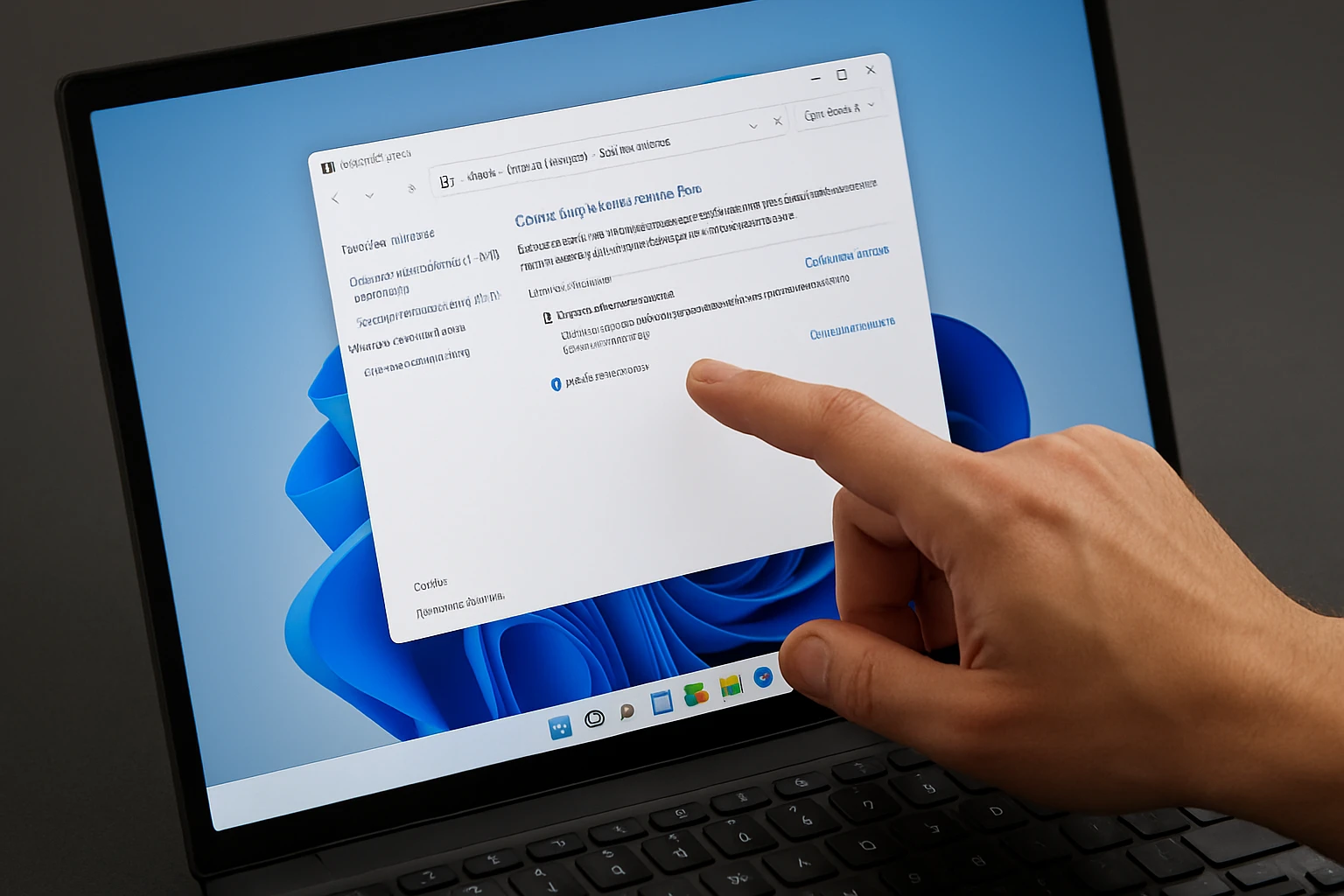
Windows cannot run flat out if you tell it to save energy first. Open Settings, then System, then Power & battery, and choose the most performance-focused power mode available. On some systems that will be Best performance. On others, you can also open the classic power plan menu and pick High performance or Ultimate Performance.
If you do not see Ultimate Performance, do not panic. Many laptops hide it, and some machines still respond well to High performance or the newer Best performance mode.
Set the GPU control panel to maximum performance
Your graphics driver has its own opinion about power saving. Change that. Set the driver power mode to Prefer Maximum Performance where available. In NVIDIA’s control panel, that label is usually easy to spot. In AMD Adrenalin, look for the equivalent performance-first global setting rather than a power-saving behavior.
This matters because a conservative power profile can make clocks bounce around when a game loads a new area or a menu disappears. Stable clocks often mean stabler frame times.
Keep the laptop plugged in during testing
On battery, many laptops quietly slash CPU and GPU performance. That can erase the benefit of every tweak you just made. Testing unplugged is like timing a runner while you hold their shirt.
| Setting Area | Performance Pick | Why |
|---|---|---|
| Windows power mode | Best performance | Allows more aggressive CPU boosting |
| Power plan | High performance or Ultimate Performance | Reduces power-saving limits that can hurt gaming |
| GPU driver power mode | Prefer Maximum Performance or equivalent | Helps the GPU hold performance-focused behavior |
| Laptop charging | Plugged in | Avoids battery-based throttling during tests |
On a laptop, performance testing on battery can hide the improvement or make it disappear.
Step 5: Trim startup apps, overlays, and background game features
Disable unnecessary startup apps in Task Manager
Open Task Manager and go to Startup apps. This is one of the cleanest fixes for slow, cluttered Windows 11 systems. Look for launchers, updaters, chat clients, clip managers, vendor utilities you never touch, and RGB tools that do not need to wake up at login.
Do not disable things blindly. Leave security software alone unless you know what it is. Leave touchpad and audio utilities alone if you use them. The goal is not a minimal Windows install. The goal is fewer freeloaders at startup.
Turn off Xbox Game Bar background activity and overlays
If you never use Game Bar for captures, widgets, or invites, disable it and test. Then look at your other overlays too: Discord overlay, Steam overlay, GeForce overlay, screen recorders, and monitoring widgets.
Every overlay hooks into the game. Sometimes that cost is tiny. Sometimes it is the difference between smooth and weirdly choppy, especially on older GPUs or 8GB systems.
Track the difference with an FPS overlay
If you cannot see the frame-rate change clearly, use an overlay before you call the tweak useless. MSI Afterburner with RTSS is still a practical way to watch FPS, frame times, GPU usage, CPU usage, and RAM while you play.
Watch 1% lows, not just the big headline number. A jump from 58 to 61 FPS is nice. A reduction in stutter during a crowded Warzone drop or a hectic Rocket League kickoff is often more noticeable.
While you are here, make sure your storage setup is not holding back newer games. Verify DirectStorage is enabled where supported. In practice, that usually means keeping Windows and your GPU driver current and running supported games from a fast SSD, since many users will not see a separate obvious toggle.
If you cannot see the frame-rate change, use an overlay before you decide the tweak failed.
Common mistakes that wipe out gains or cause problems
Changing too many settings at once
This is the classic mistake. You update the driver, enable HAGS, switch the power plan, disable five startup apps, and turn off an overlay in the same 15 minutes. The game feels better. Great. Which change helped? No idea.
Work in layers. Test after each layer. Keep notes. The point is not to do the most tweaks. The point is to keep the few that actually help your machine.
Trusting registry hacks and “optimizer” apps
Many Windows optimization videos are full of “registry placebos” that look advanced but skip the basics. If a video spends ten minutes on hidden keys but skips Game Mode, startup load, driver state, and power settings, it is upside down.
- Skip tools that promise one-click “200 FPS boosts.”
- Skip downloads that ask you to disable services you do not understand.
- Skip cleanup apps that install their own background processes.
- Skip tweaks you cannot explain in one sentence.
Simple beats mysterious. Especially on a PC you rely on every day.
Forgetting to revert a setting that hurts performance
Not every good idea is good for every machine. HAGS can backfire. An overlay can conflict with a game. A driver update can behave badly until the next hotfix. If performance worsens, roll back the last change and confirm the result.
That is not indecision. That is disciplined testing — the difference between a faster PC and a pile of random tweaks you no longer trust.
If a fix is complicated, hidden in the registry, or impossible to explain in one sentence, skip it.
Fast gains come from a short checklist: measure first, change the high-impact settings, test each result, and keep only what helps.
That is how to optimize windows 11 for gaming without turning your laptop or desktop into a science project. Start with Game Mode, drivers, power, and background load, then reverse anything that costs more than it gives.
When you run the same match again tonight, which single tweak improves your frame rate — or your 1% lows — the most?
Sharpen Windows 11 Speed With C-Educate
C-Educate offers step-by-step Windows 11 performance guides that help beginners safely find slowdown causes and fix lag, high RAM use, disk spikes, and gaming stutter.
Speed Up Safely